Your competitor down the street is getting calls right now. Not because they’re better than you. Because they showed up on Google Maps and you didn’t.
Here’s a statistic that should stop you cold: 80% of people use Google Maps to find a local business. And over 60% of consumers use a Google Business Profile to find contact information before they ever walk through a door. Yet only 35% of small-to-medium businesses actually have a verified Google Business Profile.
That gap is your opportunity.
In this guide, you’ll learn exactly how to add business to Google Maps in 2026, step by step, using every available method. You’ll also discover the common mistakes that kill listings, the optimization checklist that separates average profiles from magnetic ones, and what to do when things go wrong. Let’s go.
Why You Need To Know How to Add Business to Google Maps
Not being on Google Maps in 2026 is the digital equivalent of having no sign above your shop door.
Most consumers turn to Google Search to find local products and services. A full 51% of those local searches happen inside Google Maps specifically. You might think they are just passive browsers, but they actually are the people with wallets open, ready to act.
When someone searches “plumber near me” or “best coffee shop in Clifton, Bristol,” Google serves them a Map Pack of three local businesses. Getting into that top three requires a verified, optimized Google Business Profile (GBP).
Beyond raw discovery, a strong Maps listing builds instant credibility. Over 60% of consumers use a Google Business Profile to find phone numbers, hours, directions, and reviews before making a purchase decision. No listing means no trust signal, and it can cause your business to lose more than just revenue.
What You’ll Need Before You Start
Don’t skip this preparation step. Showing up with incomplete information mid-setup causes errors, delays verification, and can lead to duplicate or unverified listings.
Here’s what to gather before you begin:
- A Google account. Use a business email address, not a personal Gmail account like [yourname@gmail.com]. Using a branded account protects your profile in the long term.
- Your exact legal business name. Match it precisely to your storefront signage, invoices, and website. Inconsistencies confuse Google’s algorithm.
- Full business address or your service area if you don’t serve customers at a physical location (e.g., mobile electricians, delivery-only services).
- Local phone number. A real, active number tied to your business.
- Business category. Your primary category is the single most important ranking factor in local search, so choose carefully.
- Website URL. If you don’t have one yet, even a basic landing page helps.
- Regular business hours, including holiday hours if applicable.
- A verified phone number or physical address for the verification process.
One non-obvious tip: have at least 5–10 photos ready before you start. Businesses with photos receive 42% more requests for directions and 35% more website click-throughs than those without, according to Google’s own data.
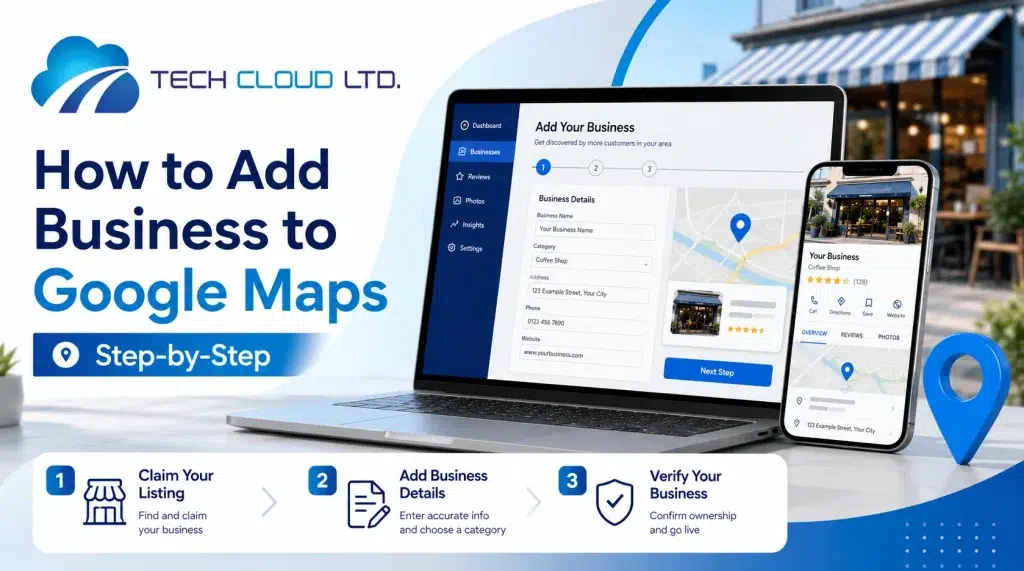
How to Add Your Business to Google Maps | Step-by-Step Guide
Before you touch a single field, do one thing first. Go to maps.google.com and search for your exact business name. Google auto-generates listings for businesses all the time using third-party data such as directories, websites, and even social media profiles. If yours already exists, you need to claim it rather than create a new one. Duplicate listings split your review history, confuse Google’s algorithm, and are one of the fastest ways to trigger a suspension.
If it’s there, click “Claim this business” and jump to the verification section below. If it’s not, you’re starting clean. Let’s build it right.
Method 1: Via Google Business Profile Manager (Recommended)
This is the gold standard. It gives you the deepest control over every field, and it’s where professionals always start.
▶ Step 1: Create or sign in to your Google Account
Go to business.google.com and sign in. Use a business-dedicated Google account, not a personal Gmail. Why does this matter? If you ever hire a manager, bring on a partner, or sell the business, transferring or sharing access to a personal account is messy and risky. Start clean.
Don’t have a business email domain yet? Create a dedicated Gmail account, like yourbrandname@gmail.com, specifically for your business. It’s not perfect, but it’s far better.
▶ Step 2: Search for your business first
At business.google.com/create, type your business name. Three scenarios will play out:
| Scenario | What Google Shows | What You Do |
| No listing exists | “Add your business to Google” prompt | Click it and proceed to Step 3 |
| Unverified listing exists | Your business name with “Claim this business” | Claim and proceed to Step 5 (verification) |
| Someone else manages it | “Request access” option | Submit ownership request with business documentation |
If someone else is managing your business profile and won’t respond, you can request ownership. If they don’t respond within 3–7 days, Google will let you take over. If rejected, submit an appeal with your business license, a utility bill, or a lease in the business name.
▶ Step 3: Enter your business name
Type your exact, legal business name. Nothing else. No city. No service keywords. No taglines.
❌ Wrong: “David’s Salon Best Hair Salon London Fast Service”
✅ Right: “David’s Salon”
This is one of the most common violations Google penalizes. Keyword-stuffing your business name triggers algorithmic red flags and can result in immediate suspension. Your name must also exactly match your signage, invoices, and legal registration; character by character.
▶ Step 4: Select your primary business category
Pause here. Your primary category is the strongest relevance signal in your entire Google Business Profile. It tells Google’s algorithm what searches your listing should compete in.
The difference between “Spa” and “Massage Therapist” is the difference between showing up for the right searches and not showing up at all. Research your top local competitors, search your main service keyword in Google Maps, and look at what primary categories the top-ranking businesses use.
Be as specific as the dropdown allows:
- “Nail Salon” beats “Beauty Salon” if nails are your core service
- “Internet Marketing Service” beats “Marketing Agency” if SEO is your product
- “Plumber” beats “Home Improvement” if plumbing is all you do
You’ll be able to add up to 9 additional secondary categories later. But get the primary one right first; it carries the most weight.
▶ Step 5: Define your business type and location
Google asks one foundational question: Do customers come to you, or do you go to them? Answer it honestly. Getting this wrong affects both your ranking and your risk of suspension.
Option A: Storefront (Customers visit your location)
Examples: restaurants, salons, clinics, retail shops, offices. Enter your full, precise address. Then manually drag the map pin to sit exactly on the entrance of your building — not the corner, not the parking lot, not the building next door. Precision here directly affects your proximity score in local search results.
Option B: Service Area Business (You go to customers)
Examples: plumbers, electricians, mobile caterers, delivery services, cleaners. Hide your address and define your service areas by city or region. Be realistic — add only the areas you genuinely serve. Adding cities far from your base makes your listing look generic, weakens your proximity signals, and means you still won’t rank there because Google knows you’re far away.
Option C: Hybrid (Both)
Examples: a bakery that has a shopfront and also delivers, or a consultant with a physical office who also visits clients. You can show your address and define a service area simultaneously. Use this only if both genuinely apply to how your customers interact with you.
▶ Step 6: Add contact details
Enter a local phone number, not a national 1-800 number, where possible. Local numbers signal local presence and build trust with both Google and your customers.
Add your website URL. If you don’t have a website yet, you can skip this field. But understand that businesses with websites consistently outrank those without in the local 3-pack. Even a simple one-page site helps.
One underused feature here: enable SMS and WhatsApp messaging if it’s available for your region. Research shows users aged 18–35 strongly prefer messaging over calling. Adding messaging options measurably increases inquiry volume from that demographic.
▶ Step 7: Add your service areas
If you chose Option B or C above, Google now asks which cities or regions you serve. You can add up to 20 areas.
This step is a direct input into Google’s proximity algorithm. An electrician who only enters their home office address without defining the three surrounding districts they actually serve will never surface in Maps results for those districts. Even if they’re only 10 minutes away. Claim every real service area now.
▶ Step 8: Set your business hours
Enter your exact opening and closing times for each day of the week. Explicitly mark days you’re closed as “Closed”; don’t leave them blank.
Hours matter more than most business owners realize. Google uses them as a live filter. When someone searches at 7 PM on a Thursday and adds “open now,” Google eliminates every business showing as closed. Incorrect hours = eliminated from results = lost customer. Update them every time they change, including during holidays and special closures.
▶ Step 9: Add your services
After you enter your primary category, Google automatically suggests predefined services that belong to that category. Check every service you genuinely offer. Then click “Add custom service” for anything not on the default list. Add it with a clear, specific name. Here’s why this matters beyond just completeness: each individual service you list becomes a separate relevance match point.
A business that lists “gel nails,” “nail art,” “acrylic extensions,” and “pedicure with massage” as distinct services will appear in four distinct categories of search queries. One listing saying “nail services” matches almost nothing specifically.
Aim for a minimum of 5 to 10 services. The more specific and search-relevant the service names, the better.
▶ Step 10: Write your business description
You have 750 characters. Use at least 700 of them. This description appears in the “From the business” section on your public profile and is indexed for relevance by Google.
What to include:
- Your top 3–5 services, named naturally.
- Your location or city (once, naturally).
- How long have you been in business, and what makes you different?
- Any standout trust factors (certifications, awards, unique specializations).
What to avoid:
- URLs, phone numbers, or HTML.
- Promotional language like “best prices” or “huge discounts”. Google’s guidelines explicitly discourage this.
- Keyword stuffing. Write for a human reader, not an algorithm
Example for a small restaurant: “Bella Cucina has been a South Congress Italian restaurant staple since 2009, back when this block was still mostly hardware stores and a barbershop nobody talks about anymore. We make three things exceptionally well: hand-rolled lasagna, homemade pasta, a Sunday ragù that’s been on the stove since Saturday, and a tiramisu people drive across town for. If you’re looking for authentic Italian food, a real sit-down Italian dinner, or one of the best Italian restaurants in Austin, this is the spot. Join us for lunch or dinner seven days a week. Dine in, order takeout, or call us about Italian catering in Austin.”
Notice it’s specific, human, local, and rich with natural keyword variations without reading like a robot wrote it.
▶ Step 11: Upload photos
Photos are not decoration. They are a direct prominence signal in Google’s local ranking algorithm. Profiles with more photos, and more frequently updated photos, consistently receive more direction requests and website clicks than those without. Google Business Profiles with photos get significantly more engagement. Google requires a minimum of two photo types at setup:
- Exterior photo: Your business entrance, storefront sign, and street number are visible. This helps customers find you physically and confirms your address to Google.
- Interior and product photos: Show your workspace, your team in action, your product quality, and the customer experience. Real, unfiltered photos outperform stock images because Google can identify stock photos algorithmically.
Photo technical specs:
- Minimum 720x720px (higher is better)
- Format: JPG or PNG
- No watermarks, phone numbers, or overlaid text
- No filters that misrepresent the physical space
After setup, commit to adding at least 2 to 3 new photos every month. Google tracks upload frequency. An active photo cadence signals an active, operating business; and active businesses rank higher.
▶ Step 12: Review everything, then submit
Before you hit submit, go through this pre-verification checklist:
◻ Business name matches your physical signage exactly
◻ Address pin is precisely on your entrance (not the street)
◻ Primary category is the most specific, accurate match
◻ Phone number is active and correct
◻ Service areas reflect where you truly operate
◻ Hours are accurate for all 7 days
◻ At least 5 services are listed
◻ Description uses 700+ characters with natural keyword variation
◻ At least 5 photos uploaded (exterior + interior)
Submit. You’ll now be prompted to verify.
The GBP Verification Process | Full Breakdown
Verification is where most new listings stall. Here’s everything you need to know:
Google decides which verification methods are available to you. You don’t always get to choose. The options depend on your business type, your region, your account history, and the data Google already has about your business.
◼ Video Verification (Dominant method in 2026)
Video verification is now the primary and most common method Google requires for new listings. You’ll record one continuous, uncut video that shows:
- Your exterior: The street, your building, your signage with the business name clearly visible, and your building/street number
- Proof of access: Physically unlock and open the door using a key or code. This proves you control the space
- Your interior: Your workspace, equipment, products, or anything that confirms business activity
Critical rules for video verification:
- One continuous shot, zero cuts, zero pauses.
- Permanent signage only — no printed paper signs/ banners/temporary signs.
- No customer or employee faces are visible.
- Minimum 30 seconds, under 2 minutes preferred.
- Film in good lighting, daytime preferred.
If your video is rejected, Google gives you multiple attempts. Common rejection reasons are: temporary paper sign (not accepted), video shows cuts, the business name on the sign doesn’t match what’s in your profile, or no proof of physical access was shown.
Do not create a new profile if verification fails. Request another attempt through the same profile. Creating a duplicate during a failed verification is one of the fastest paths to a permanent suspension.
◼ Phone / SMS Verification: Google texts or calls your registered number with a 5-digit code. Available for select businesses. Takes minutes.
◼ Email Verification: A verification link or code is sent to your business email domain. Available for some accounts. Takes minutes.
◼ Postcard Verification: A physical postcard is mailed to your business address with a 5-digit verification code. Delivery takes 5–14 days. The code expires after 30 days — set a reminder the day you request it.
◼ Video Call Verification: A live video call with a Google support representative who guides you through real-time verification of your physical presence. Available in select regions.
After verification is complete, your listing typically goes live within 3 to 7 days. Until then, the profile exists but is not publicly visible on Maps or Search. Next, focus on optimizing your GBP—check out our comprehensive guide on Google Business Profile Optimization for detailed tips and instructions.
Method 2: Directly Through Google Maps on Desktop
Faster for those who are already browsing Maps and just want to get started:
- Go to maps.google.com and sign in to your Google account
- Search your business name to confirm it doesn’t already exist
- In the top-left menu (three horizontal lines), click “Add your business”
- Alternatively, right-click anywhere on the map at your precise location and select “Add your business” from the dropdown
- Fill in your business name and category in the form that appears
- You’ll be redirected to the full Google Business Profile setup flow to complete the remaining details
This method starts the same process as Method 1. It simply uses the Maps interface as the entry point. You’ll complete everything through the GBP dashboard.
Method 3: Via the Google Maps App (Android or iOS)
Best for business owners who manage everything from their phone; especially convenient if you’re doing video verification and already have your phone out:
- Open the Google Maps app
- Tap your profile icon in the top-right corner
- Select “Your Business Profiles”
- If no profile exists, tap “Add your business”
- Enter your business name and category
- Follow the on-screen steps to add your address, contact details, and hours
- When prompted, complete video verification directly through the app.
The mobile app is particularly useful for video verification because you can film and upload in one session without needing to transfer files.
Google Business Profile Issues & Their Solutions
Even when you do everything right, things can go sideways. Here’s what to do.
⏹ Issue: “Your listing is suspended”
Why it happens: Violation of Google’s guidelines — keyword-stuffing in the business name, using a virtual address, or suspicious activity.
Solution: Review Google’s guidelines line by line. Correct the violation. Then submit a reinstatement request through the Google Business Profile Help page. Expect 3–7 business days for a response. For stubborn suspensions, contact us for assistance.
⏹ Issue: “I can’t find my verification code/postcard; it never arrived”
Why it happens: Postal delays, incorrect address entry, or the code has expired.
Solution: Log in to your GBP, go to the verification section, and request a new postcard. Double-check every character of your address. If you’ve requested two postcards without success, switch to video or phone verification if those options are available.
⏹ Issue: “My business shows up in the wrong location on the map”
Why it happens: The pin was placed incorrectly during setup, or Google auto-generated the listing with bad map data.
Solution: In your GBP dashboard, go to “Info” > “Location.” Use the map editor to drag the pin to the exact entrance of your business. Submit the correction. It may take 24–72 hours to update.
⏹ Issue: “A duplicate listing exists for my business”
Why it happens: Auto-generated listings from third-party data, or a previous employee created a listing.
Solution: Claim the duplicate by clicking “Claim this business” on the listing. Once you own both, request a merge through the GBP support chat. Google will consolidate the reviews and data.
⏹ Issue: “My listing shows incorrect hours or information I didn’t enter”
Why it happens: Google uses AI and third-party sources to auto-suggest changes to listings, sometimes based on user-submitted “edits.”
Solution: Turn on notifications in your GBP settings. Any suggested edit will trigger an alert. Review and accept or deny changes immediately. An unmonitored listing can have its information quietly changed by Google or competitors.
⏹ Issue: “My listing isn’t appearing in Maps after verification”
Why it happens: New listings can take 3–7 days to index after verification. In some cases, Google may need additional review.
Solution: Wait at least 7 days. If the listing still doesn’t appear, log in to your GBP dashboard and confirm the status shows “Published.” If it shows “Pending,” contact GBP support directly.
Final Words
Getting on Google Maps won’t automatically make you the top result. You will need proper GBP optimization. But not being on it will automatically keep you near the bottom. The fundamentals you’ve learned here, such as proper setup, correct verification, and consistent optimization, are critical. They are what separate the businesses thriving in local search from the ones wondering why their phone isn’t ringing.
If you’d like help building a local search presence that compounds over time, explore our local SEO service and our portfolio to find out what we can do for your growth. The SEO cost is almost always less than a single missed customer per day. Get started today!